
You return to a base that should look familiar, and the walls look as though their textures never finished loading. Or you respawn, open the map, and find that some of the icons you were using have disappeared. Before turning that into a graphics-settings overhaul or a search for missing world objects, check the two problems Pocketpair actually addressed in Palworld 1.0.5.
One concerns texture detail. The other concerns map icon filters after respawn. They have different symptoms and different checks, and neither patch note establishes that a world object was deleted.
Two fixes, two very different problems#
| Symptom | Patch scope and first check |
|---|---|
| Blurry surfaces | Terrain, building and other textures could load at significantly reduced resolution. Record the installed version and compare a fixed view of the same scene. |
| Missing map icons | Some icon filters could switch off after respawn. Open the filter controls and check whether the relevant category is enabled. |
| Other problems | Stuck Pals, missing buildings and crashes are not established by these two notes. Describe the separate symptom rather than treating it as this fix. |
These are the issues in Pocketpair's v1.0.5 announcement. This article is a reference to that September patch, not a claim that Pocketpair released another patch today.

Blurry textures: compare the surface, not the whole settings menu#
The texture note covers terrain, buildings and other textures loading at reduced resolution for some players. It does not identify every cause of a soft-looking image, publish a universal graphics preset, or promise a frame-rate increase.
That makes a controlled comparison more useful than changing everything that sounds related to image quality. Pick a surface you can reliably revisit, stand in the same place, and keep the camera and display settings consistent. Record the exact build before comparing an older installation with an updated one.
If you change the game build and several graphics settings together, a better-looking wall no longer tells you which change mattered. For this particular question, the useful evidence is whether the same scene on the updated build behaves differently under the same conditions.
Missing icons: check the filter before the world#
The map issue is more specific: some icon filters could turn off after the player respawned. The distinction matters when a missing symbol appears to imply a missing destination.
Start by checking the relevant category in the map controls. If enabling it brings the icons back, you have learned something useful without traveling across Palpagos or changing a mod. If it does not, that observation belongs in the report too; it is a different result from a filter simply being disabled.
For a repeatable check, note which categories are enabled, then compare them after a respawn during ordinary play. Do not deliberately risk a valuable run just to reproduce a display issue.
The PalMods interactive map can help you keep track of the location you meant to visit. It is a separate reference tool, so its marker controls should not be confused with the in-game filters affected by the patch.
A short diagnostic pass you can actually repeat#
- 1Record the exact build
Write down the version shown by your installation. If you play on a shared world, record the host or server version as well.
- 2Choose one symptom
Low-detail textures and disabled map filters belong in separate comparisons.
- 3Fix the comparison point
Use the same scene for textures, or record the enabled categories for the map.
- 4Compare under the same conditions
Keep unrelated settings and the mod loadout stable while checking the specific symptom.
- 5Save the result
A screenshot, exact version and short reproduction sequence are more useful than saying the patch did nothing.
These are suggested diagnostic steps, not a claim that PalMods reproduced the issue or tested every platform. A later build can also have a different problem that resembles an older one. The version and reproduction sequence keep that distinction visible.
For modded worlds, keep the working copy out of the experiment#
If your installation uses mods, keep a backup and a record of the current loadout before isolating a possible cause. Follow the author's removal guidance and use a separate test copy where practical. Removing a mod and immediately saving over a valuable world is a much larger action than checking an icon filter.
- Record the game build and, if relevant, the host or server build
- Record the loader and mod versions used in the comparison
- Keep a backup of the world and current loadout
- Capture the same scene or filter categories before and after the relevant action
- Change one variable at a time and record what actually happened
The existence of a game fix does not certify a loader or mod for that patch, and a modded installation does not establish that a mod caused the symptom. Keep both possibilities open until your comparison supplies evidence.
Know which update you are reading about#
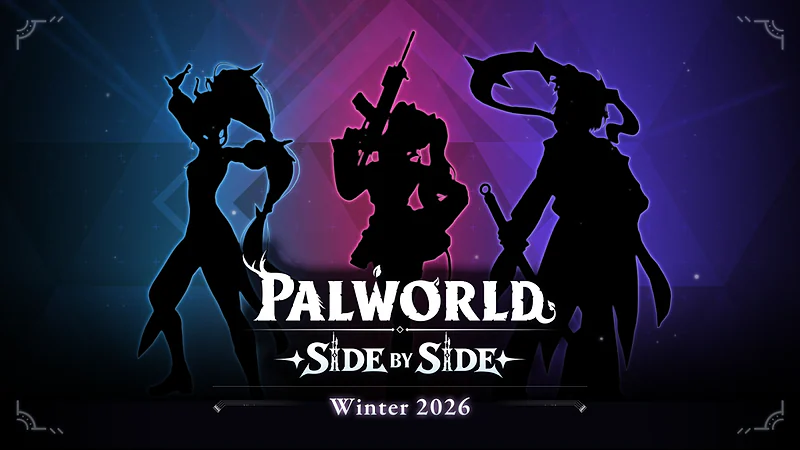
If you are looking for new things to play, our 1.0.4 coverage covers the preceding mission and gameplay changes. If you are following Pocketpair's newly announced winter content, read the Side by Side breakdown.
For a blurry base or a map that seems to have lost its landmarks, this smaller patch remains the relevant reference. Match the symptom first. That is how you avoid spending an evening rebuilding a setup when the first useful check was a version number or a filter toggle.
Comments
Loading discussion...